How to Change Your Globe At Home WiFi Password
Resetting your Globe at Home WiFi password is easy and must be done as data security should not be compromised. If it is needed to lock your account simply change a password or prevent somebody unauthorized get into it – this guide is perfect for you. In this guide, we’re going to detail how you can access your router’s settings and How to change your globe at home wifi password. If you follow these steps you will be through in minutes.
Why You Should Change Your Globe At Home WiFi Password Regularly
Before diving into the steps of how to change wifi password globe, let’s discuss why it’s important to change your WiFi password regularly:
- Security: Passwords should be changed to ensure that no unauthorized user gets access to your network.
- Prevent Hacking: Updates can be done periodically or regularly to avoid letting hackers infiltrate your data.
- Control Access: Restrict people who can connect to your WiFi by using a password that is not easily guessed by others.
- Better Speed: There are fewer unauthorized users and thus more bandwidth to use.
Things You’ll Need
To globe at home change password, you’ll need the following:
- A smartphone, tablet, or a computer connected to your Globe WiFi network
- The physical interface of the Globe at Home router, or the home gateway equipment.
- They use the username and password that is sometimes written on the stickers around the router package.
Steps for Globe Wifi Change Password at Home Wifi Password
Here are 7 easy steps to help you change your Globe at Home WiFi password. By following these simple instructions, you’ll be able to do it yourself.
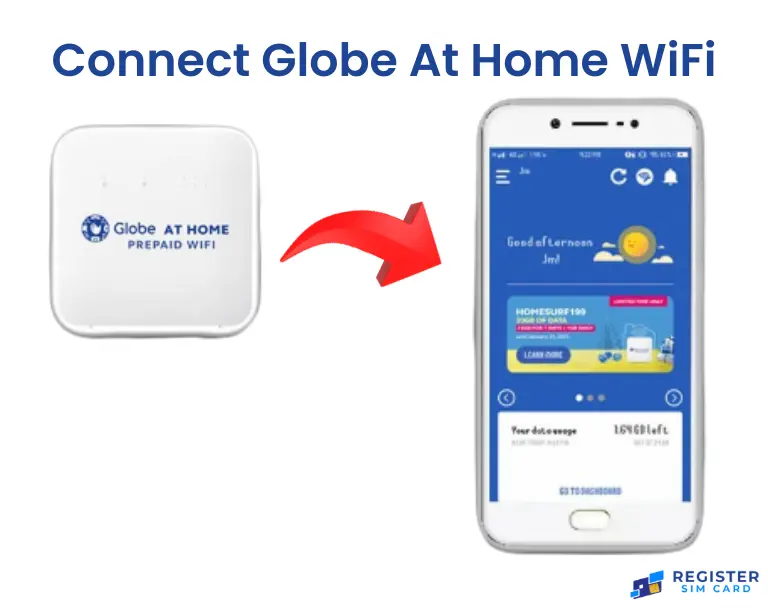
Step 1: Join Your Globe WiFi Network
The first step for how to change password in globe at home wifi is to ensure that your machine is logged into your Globe WiFi connection. This means to change certain aspects of the router, you have to be on the same network as the router.
- First, please tap the WiFi button on your device.
- Then, take a moment to wait for the options to show up.
- Next, kindly select your favorite Globe at Home network from the list.
- If needed, just enter the current Globe WiFi password that you used earlier. Thank you!
Step 2: Open Your Web Browser
- Turn on the connected device that you have linked up to the system and ensure it is functioning properly.
- Then, a web browser has to be opened which can be either Google Chrome, Firefox, Safari, or Edge.
- Let’s test the browser to rule out even the slightest possibility of a connection failure.
- If you’re looking for anything, the address bar at the top of your browser helps you out in finding it.
- There, input the IP address of the router. The default addresses are most commonly 192.168.1.1 or 192.168.254.254. These numbers usually work. `
- After that, tap Enter. Most likely, you will be taken to the router’s login page.

Step 3: Log In to Your Router
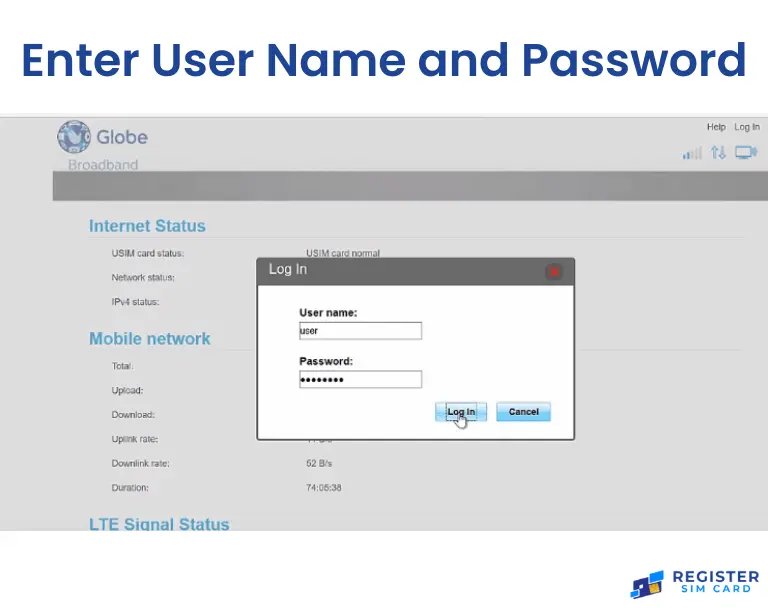
- Access your Globe at Home router’s login page by entering its IP address in any web browser.
- Enter Admin Username and Admin Password in the two fields.
- Enter “admin” as the default username.
- Enter the default password, usually “admin” or “1234“.
- Hit “Login” or “Enter” to embark on your next digital adventure.
- If you’ve crafted a custom password, type it in. If not, power cycle your router. This will restore all factory settings, including the Wi-Fi passwords.
Step 4: Access the Wireless Settings
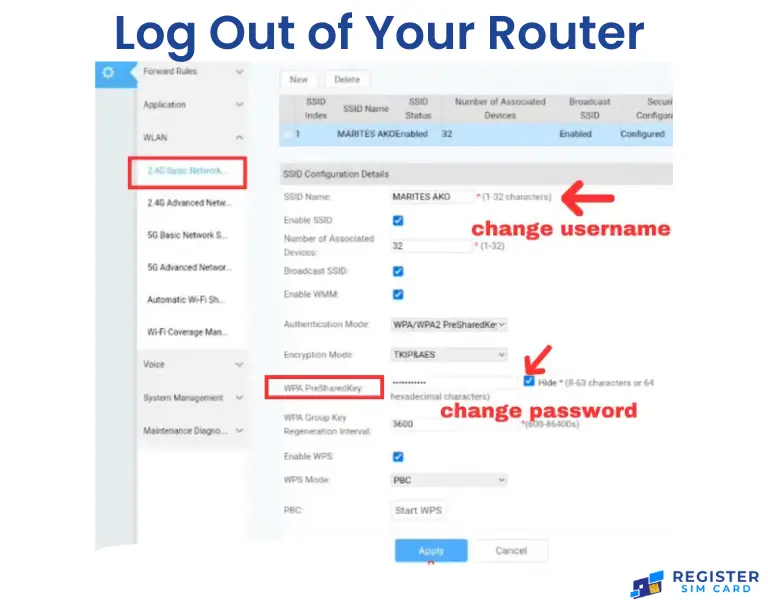
- Click here to modify the wireless settings from the Wi-Fi section of the settings as needed.
- You should be able to find a list of wireless settings that are labeled Wireless WiFi, or Wifi.
- Go to the right tab such that wireless settings will be opened.
- Create a new Wi-Fi password for greater security and authorized usage to prevent unauthorized access.
- Change the network name, security mode, or channel settings as applicable.

Step 5: Change the WiFi Password
- Please refer to the label and locate the network’s name for easier identification.
- Another part of the website should allow you to see the Password or Passphrase or Pre-shared key. This area enables you to create your new Wi-Fi password.
- Dispose of the old password so that it doesn’t blend with the new password and create room for a new password.
- Make sure that the password is strong yet unforgettable. Combine uppercase and lowercase letters with numbers and symbols.
- To confirm your new password, simply click Save Apply or Submit.
- Each of these helps you in the effective and efficient completion of the given task.

Step 6: Reconnect Your Devices
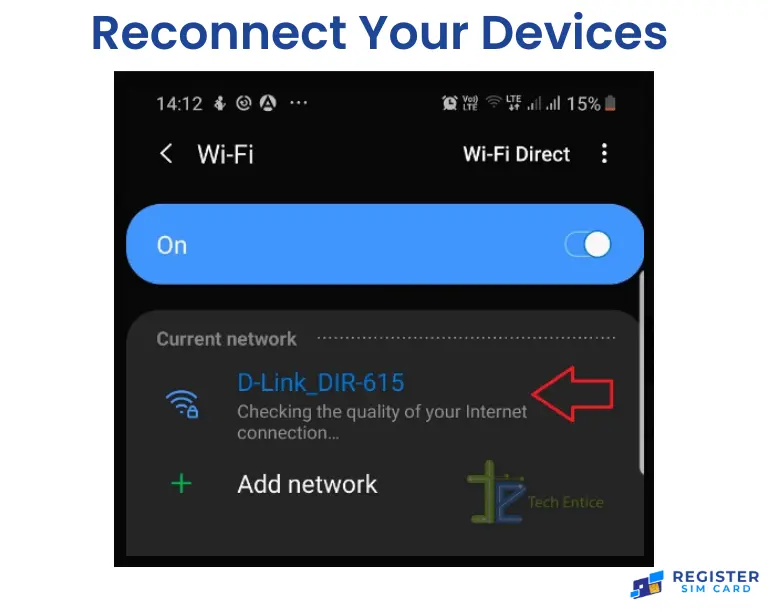
- Return to the setting of the WiFi on each of the devices.
- Choose your Globe at Home network.
- Enter the new WiFi password.
- Perform the same exercise for all the devices that were connected before.
Step 7: Log Out of Your Router
- Log on to your wireless network using its SSID or Network Name.
- Find the password option and enter your wifi password.
- Delete the old password to make for the new one.
- Create a strong password. Use big letters. Include small letters. Add numbers. Use symbols.
- Click save, Apply, or Submit to update your router settings.
Troubleshooting Common Issues
At times there are problems that you may find yourself having to solve when you want to change your WiFi password. Here are some of the most common difficulties and how to deal with them:
- Forgotten Router Login: In situations, where you’ve forgotten your router admin password, you consider resetting the router to factory settings. This usually involves a process of unplug the red reset button located at the router for 10-15 seconds.
- Can’t Access Router Settings: Check that your device is connected to Globe WiFi in case you are viewing this page on the internet. Determine whether the entered IP address in the browser is correct or not.
- Devices Won’t Connect: If you are unable to connect the devices after altering the password then it means you are entering the wrong password.
- Slow Internet: If you have realized that your internet speed has reduced when you change your password, try resetting the router. Switch it off, wait for 10 seconds, and switch it back on.
Advantages of Changing Your WiFi Password
1. Improved Network Security
This is one of the simplest tips which you should always apply if you want to secure your network and this involves always changing the passwords of your WIFi. It assists in preventing any unauthorized entity from accessing the internet connection.
After using a weak password on the system, I switch to a strong password that will minimize the possibility of hacking because of the combination of characters. By frequently changing the password one can keep the WiFi secure against cyber criminals.
It is important to maintain the privacy of the information you are submitting and to check and make sure the connection is secure as well.
2. Prevents Unauthorized Access
Then you may find that some people are connecting to your WiFi without authorization. In another way, frequently changing the passwords would ensure that only approved devices are recognized.
It also prevents friends, neighbors, or any other one who once visited you from connecting to your Internet connection without your permission. This means only the gadgets which you allow to connect are connected hence enhancing the safety and efficiency of your network.
3. Boosts Internet Speed
When many concurrent users or connected devices are present, the internet speed that you get from your WiFi will be affected. In particular, free riders eating up bandwidth can slow down your connection.
How can I improve my internet connection? When you change your WiFi password, this will help you to remove all the unwanted gadgets connected to your WiFi and bring back your internet speed. This enhances your network speed and thereby makes your browsing, streaming, and downloading experiences much better.
4. Protects Personal Data
Here is what you should know, your WiFi network is connected to your computer, iPhone, iPad, and Blackberry and most of these contain sensitive data like your emails, bank details, and personal files among others.
This data is well protected from unauthorized access by changing your password. A strong regular password means that someone cannot hack into your account thereby protecting yourself from losing important information.
5. Adds Control to Associated Devices
Changing the password on your WiFi lets you know which devices have connected to it. They have probable cause, but you can eliminate unknown or unwanted devices and gain control. This also guarantees that any internet is being used by trusted devices meaning more efficiency and security to your networks.
When to Contact Support
In case you are still having a problem after reading all these steps you can then consult Globe at Home or perhaps the router provider. Give them specific information about the problem, what messages errors, or what kind of behavior are shown. They can provide certain steps on how to solve a problem or provide users with further elaborated solutions.
Solving these minor problems means that you will have a seamless experience after altering your Globe at Home WiFi password. Security is key when it comes to your network to prevent unauthorized access though, getting the problem with the connectivity solved as early as possible will prevent inconveniences to other people using the internet in your home.
FAQs
Conclusion
In conclusion, it is safe and easy to change the Globe at Home WiFi password, and that updating one is important. Therefore, by the use of your router, you will easily change the password as a way of enhancing your security and securing your data.
The passwords should be changed frequently to avoid Cubes authorization from outside by undesirable devices. It also increases the internet speed by getting rid of misuse of the connection. Just always remember that having a strong password and following these security tips will help secure your network to be used for regular use.